This tutorial covers quickly deploying a complete monitoring stack including Prometheus and Grafana for your Redis Software instance. We’ll then dive into understanding the metrics, setting up alerting, and further expanding your dashboards.
The tutorial should take ~1hr. The target audience is system administrators and devops professionals with experience using Redis Software.
In this tutorial you will learn how to:
- Quickly spin up a monitoring stack for a Redis Software instance
- Understand the Redis Software’s v2 metrics
- Utilize alerting within Prometheus and third-party systems
- Expand and customize dashboards further using documentation
NOTE
This tutorial relies on an existing Redis Software instance. You may follow our quickstart guide for testing environments or our installation documentation for production environments.
Prerequisites
- A running Redis Software v7.8.2+ instance (required for v2 metrics support)
- Docker and Docker Compose installed
- Network access to a Redis Software cluster (via port 8070)
- Your Redis Software cluster FQDN
- Intermediate familiarity with Redis and enterprise-grade infrastructure.
Setup commands
The Redis Field Engineering team provides a turnkey solution that sets up Prometheus + Grafana with pre-configured dashboards. You can quickly set it up by running the following commands:
NOTE
You must use
very-secret-passwordin the setup script above. If you use a different password, the script won't run properly. This password is configured in thedocker-compose.ymlfile.
This script automatically:
- Configures Prometheus to scrape v2 metrics from your cluster
- Deploys Grafana with Redis Software dashboards
- Sets up the complete monitoring stack via Docker Compose
Access your monitoring stack
After the setup completes:
- Grafana: http://localhost:3000 (user: admin, pass: very-secret-password)
- Prometheus: http://localhost:9090
Verify everything is working
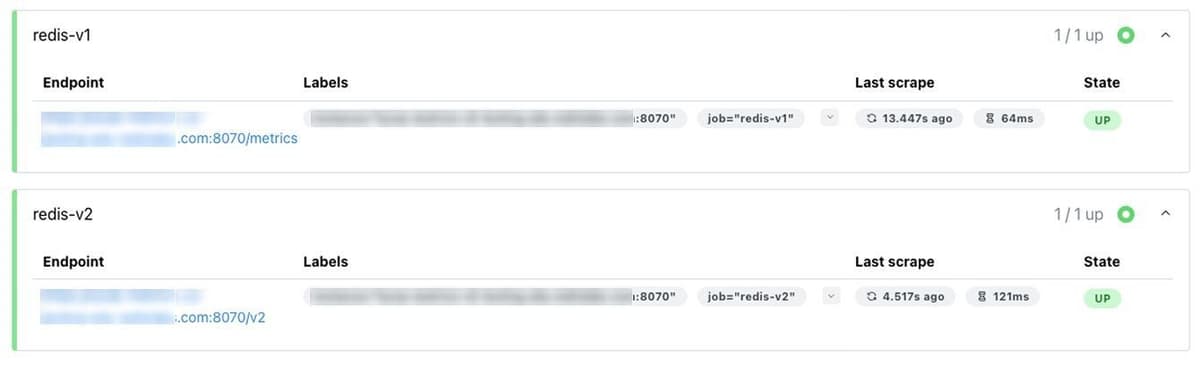
1. Check that Prometheus is collecting metrics:
- Go to http://localhost:9090/targets
- redis-v1 and redis-v2 should show as "UP"
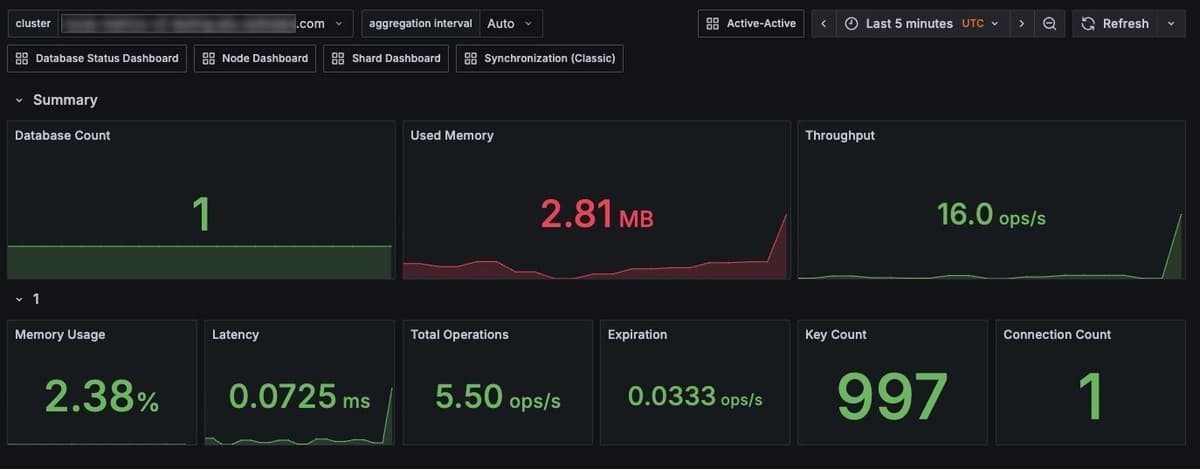
2. View your dashboards in Grafana:
- Sign in using user: admin, pass: very-secret-password
- Navigate to Dashboards
- Open "Cluster Status Dashboard" or other dashboards
- Verify data is populating
To see the metrics as they start to come in, you may want to make the time range smaller in the top right of the dashboard, e.g. “Last 5 Minutes”.
V1 vs V2 metrics
This setup uses Redis Software Metrics Stream Engine. Below, you can compare features between the original Metrics v1 and v2.
| Feature | Metrics v1 | Metrics v2 |
|---|---|---|
| Precision | Millisecond averages | Microsecond histograms |
| Real-time | Snapshot-based | Stream-based |
| Maintenance visibility | Limited | Full visibility during failovers |
| Required version | Any | v7.8.2+ |
Why v2 matters: Real-time monitoring with sub-millisecond precision and visibility during all operations, including maintenance windows.
V2 calculation examples
V1 approach (snapshot-based):
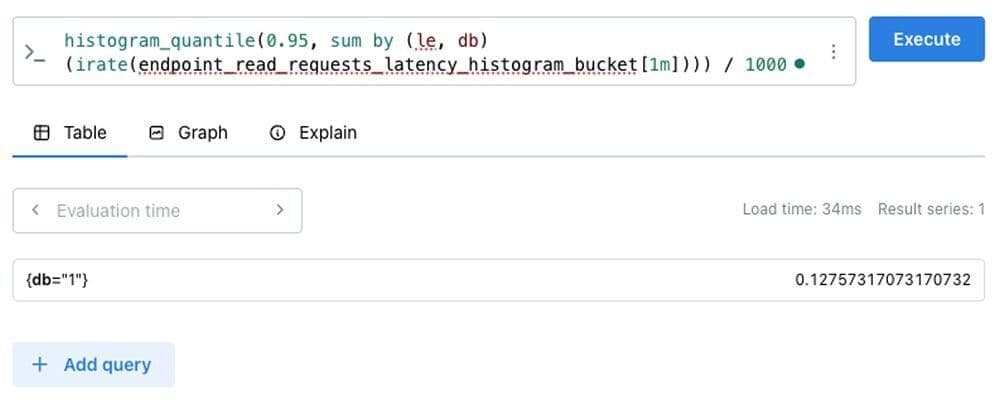
V2 approach (stream-based with PromQL):
The metrics take a couple minutes to come into Prometheus. If you’re seeing no data and you’re sure you’re getting read requests, wait a few minutes and refresh or increase the time window, e.g. 1m -> 5m.
The v2 metrics stream engine provides finer-grained control over metric queries, including the ability to filter or aggregate results by quantile — for example, extracting the p95 (95th percentile) latency metric for specific operations.
This update gives you greater flexibility and precision in querying metrics, leveraging PromQL aggregation functions
for powerful custom analysis.
Migration from V1 to V2
For a comparison of queries if you're looking to move from V1 to V2, check out our Transition from Prometheus v1 to Prometheus v2 documentation
Reading and understanding your dashboards
Let's dive into what the key metrics mean and how to interpret dashboard data for operational decision-making.
Your monitoring stack includes several pre-built dashboards. Here's what to focus on:
Core dashboards overview
Below are three important dashboards to get familiar with:
Cluster status dashboard - Your starting point for cluster health:
- Database count and status
- Overall resource utilization (used memory, memory usage)
- High-level performance indicators (total ops/sec, average latency, key count)
Database status dashboard - Application-focused metrics:
- Per-database performance (latency, throughput, error rates by database)
- Memory utilization
- Connection patterns (active connections, connection rate changes)
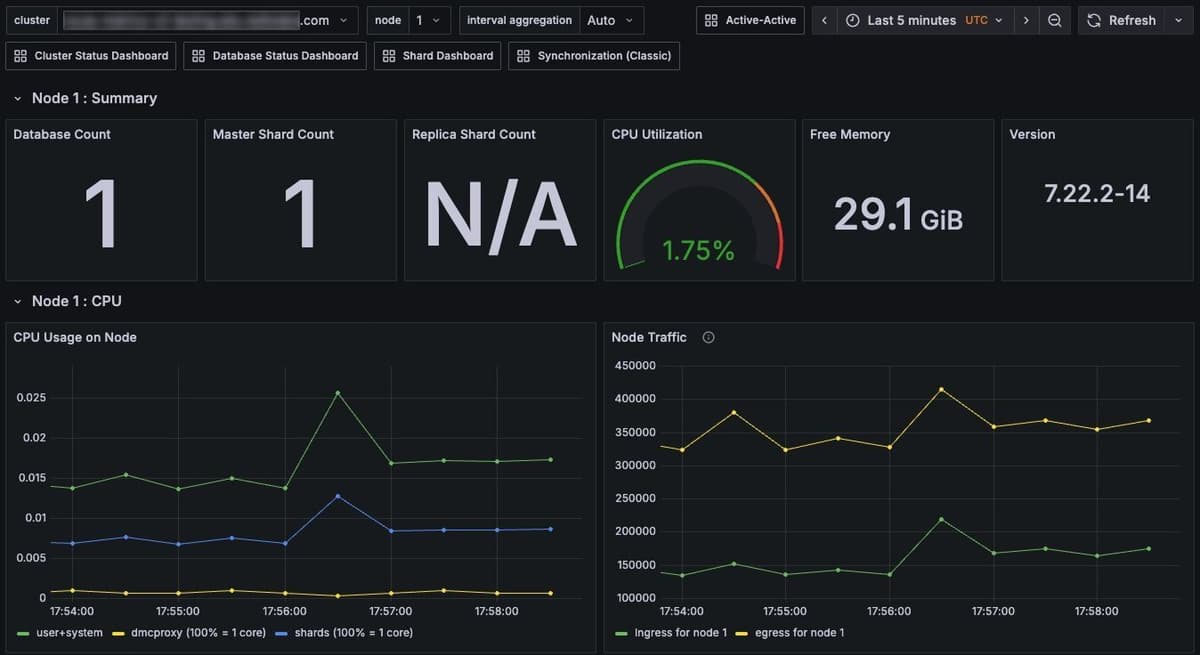
Node dashboard - Infrastructure details:
- Shard & database counts
- CPU, memory, and network per node (individual machine resource usage)
- System-level health indicators (OS metrics, file descriptors, disk I/O)
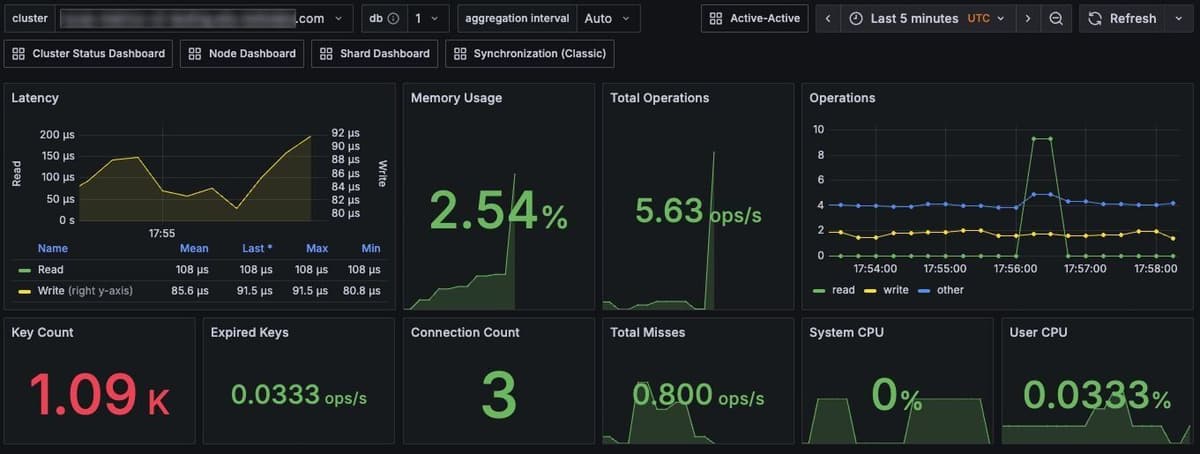
Key metrics to monitor
Memory utilization
Memory utilization can be calculated using the following v2 metrics in Prometheus or Grafana.
What to look for:
- Caching workloads: Safe up to 100% (relies on evictions)
- Non-caching workloads: Alert at 80%, critical at 90%
- Trend analysis: Steady growth vs. sudden spikes
Latency performance
Latency performance can be calculated using the following metrics in Prometheus or Grafana.
Example performance targets:
- Excellent: <0.5ms
- Good: 0.5-1ms
- Investigate: >1ms
- Critical: >4ms
NOTE
These targets are based on typical Redis Software performance. Your specific thresholds may vary based on network, hardware, and app requirements.
CPU utilization
Redis Software monitors CPU at three levels:
- The shard CPU which tracks individual Redis processes (single-threaded)
- The proxy CPU which monitors the multi-threaded connection routing processes
- The node CPU which shows overall system utilization.
Since Redis shards are single-threaded, a high shard CPU utilization often indicates hot keys or data distribution problems, while a high proxy CPU utilization suggests connection issues. You'll need to establish appropriate thresholds based on your specific environment and performance requirements.
What to watch out for
Hot keys - One shard has a high CPU utilization while others are idle:
- Symptom: Uneven CPU distribution across shards
- Impact: Single-threaded bottleneck
- Solution: Distribute keys, implement app caching
Large keys - High network utilization with CPU spikes:
- Symptom: Network traffic spikes correlating with CPU
- Impact: Bandwidth and processing bottlenecks
- Solution: Break large values into smaller keys
Slow operations - Commands taking excessive time:
- Symptom: Latency spikes with specific operation types
- Impact: Overall performance degradation
- Solution: Optimize queries, avoid O(n) operations like
KEYS
Cache performance analysis
For caching workloads, monitor:
Suggested target ranges:
- Excellent: >90% hit ratio
- Good: 70-90%
- Needs attention: <70%
Resources:
If you're looking to dive deeper, the following resources explain these metrics in greater detail.
- Redis Software developer observability playbook - Comprehensive analysis techniques
- Redis Software observability guide - Detailed metric explanations
Alerting and proactive monitoring
We can also set up intelligent alerts that notify you before issues impact apps. The setup script that we ran earlier added Prometheus Alertmanager and it’s been populated with Redis-specific alert rules.
There are three primary suggested areas of monitoring and alerting:
- Performance alerts: These alerts monitor latency, CPU utilization, and memory pressure to detect degradation before it impacts apps.
- Availability alerts: These alerts provide immediate notifications for critical failures like node outages or shard unavailability.
- Capacity alerts: These alerts use predictive monitoring to warn about approaching resource limits before they cause problems. They are designed to escalate from ‘warning’ to ‘critical,’ based on severity, giving you time to respond before issues affect your users.
Alerts will appear in the Prometheus console under the Alerts tab.
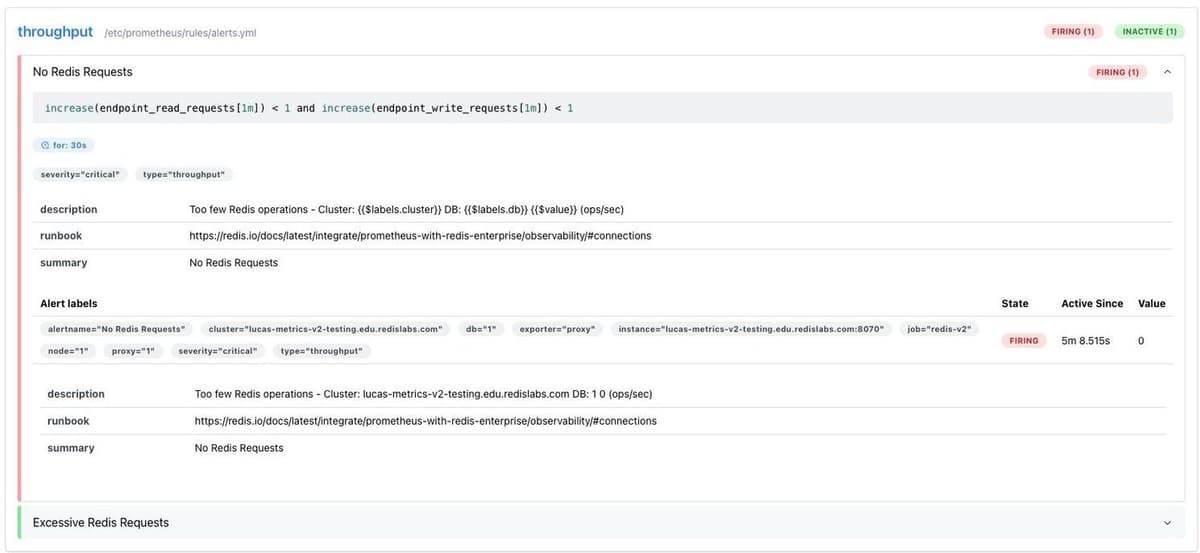
Sample alert configuration
The alerts used for this tutorial can be found at redis-enterprise-observability/prometheus_v2/rules/alerts.yml. If you'd like to test edits, you'll need to bring down the dashboard Docker container and run the setup script again.
Here's an example alert for high latency:
Once you have an alert like the one above, you'll then need to add the file name to the rule_files section of the prometheus.yml file to see the alerts in action. See these in the Prometheus console under the Alerts tab.
Notification setup
You can also configure Alertmanager for your notification channels, such as Slack, PagerDuty, Email, etc. Here's an example of what a notification might look like:
Prevent false positives:
- Use appropriate
fordurations (2-5 minutes for most alerts) - Set minimum traffic thresholds for meaningful alerts
- Use
avg_over_time()for noisy metrics
Resources:
To dive deeper, check out the following resources on alerting:
- Prometheus Alerting docs - Complete alerting guide
Custom dashboards with advanced metrics
Lastly, let’s get familiar with what's possible with custom dashboards and v2 metrics for specialized monitoring needs.
V2 metrics capabilities
Redis Software v2 metrics (available in v7.8.2+) provide comprehensive monitoring capabilities. Note: V2 metrics are currently in preview with a partial list available.
You can test some of these queries in Prometheus to see their outputs.
Database endpoint monitoring:
Node resource monitoring:
Cluster status tracking:
Replication monitoring:
Redis shard performance:
Advanced Grafana features
Grafana provides several powerful features for creating sophisticated Redis Software dashboards:
- Template Variables: These variables allow you to create dynamic dashboards that can filter by cluster, database, or time range.
- Heat Maps: These maps can visualize latency distribution over time using v2 histogram metrics.
- Annotations: These let you mark deployment events or maintenance windows on your charts.
Resources:
- V2 Metrics Complete Reference - All available v2 metrics
- Grafana Dashboard Best Practices - Dashboard design guidance
- PromQL Tutorial - Query language reference
Next steps and resources
What you've accomplished
Throughout this tutorial, you:
- Deployed a complete Redis Software monitoring stack
- Understood key performance indicators and dashboards
- Set up proactive alerting for critical issues
- Explored advanced monitoring possibilities
Additional resources
Official docs:
- Redis Software Monitoring Overview - Complete monitoring guide
- Metrics Stream Engine - V2 metrics architecture
- Transition from Prometheus v1 to Prometheus v2 documentation
Learning & certification:
- Redis University - Get Started with Redis Software - Free courses about all things Redis, including Redis Software
- Redis Developer Hub - Find other tutorials, client libraries, videos and dev events
Community support:
- Redis Discord - Active community discussions
- GitHub Issues - Report bugs or request features for this repo
Extending your setup
Production considerations:
- Configure persistent storage for Prometheus data
- Set up high availability for monitoring infrastructure
- Implement proper authentication and TLS
- Plan retention policies for metrics data
Advanced integrations:
- Connect to existing SIEM systems
- Integrate with incident management (PagerDuty, OpsGenie)
- Add business logic metrics and custom exporters
- Implement automated capacity scaling based on metrics
Your Redis Software observability foundation is now in place. The monitoring stack can grow with your deployment and provide continuous insights into your Redis operations.
Reach out to the Redis team if you're looking for help expanding further.