For developersMemorystore to Azure Managed Redis (AMR)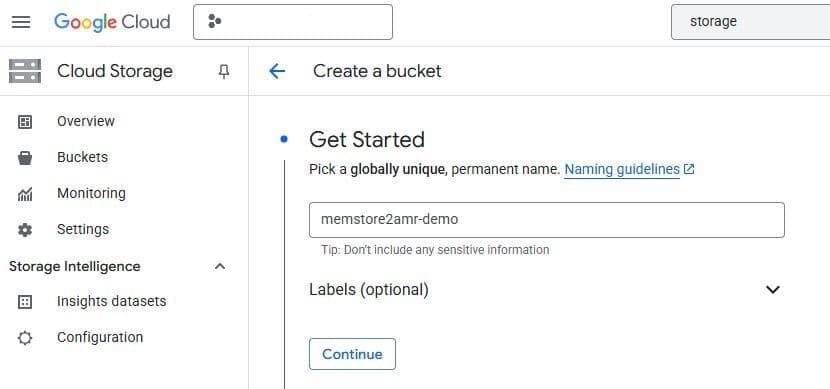
Before migrating to Azure Managed Redis, you should evaluate the migration and consider the best option. Read this guide to determine which migration strategy is right for you. Note: Reach out to our team for support on live migrations.
#Offline data migration
#Create a Google Cloud Storage bucket with proper permissions
- Create a new bucket to store Memorystore backups.
- Click Save.
#Export from Memorystore to Google Cloud Storage Bucket
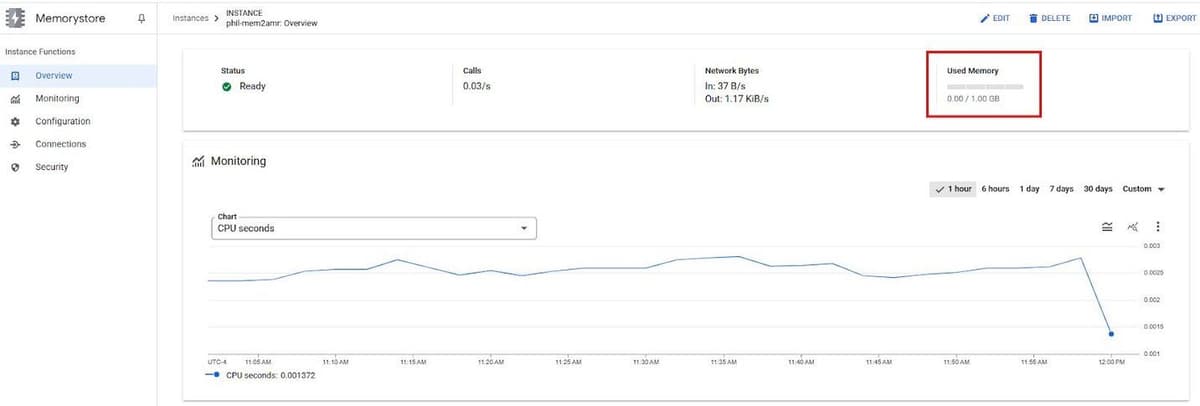
- Navigate to the Overview page of your Memorystore instance.
NOTE: Make note of the data size of your instance, you will need it when creating your Azure Managed Redis instance
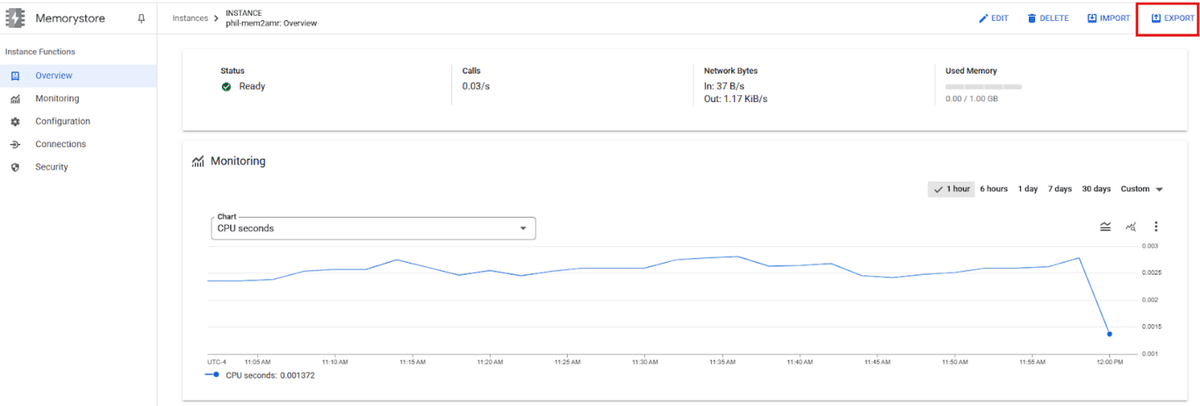
Select Export in the top right
- Find the Google Cloud Storage bucket created in the previous step
- Select that bucket
- Click Export
#Download from the Google Cloud Storage Bucket
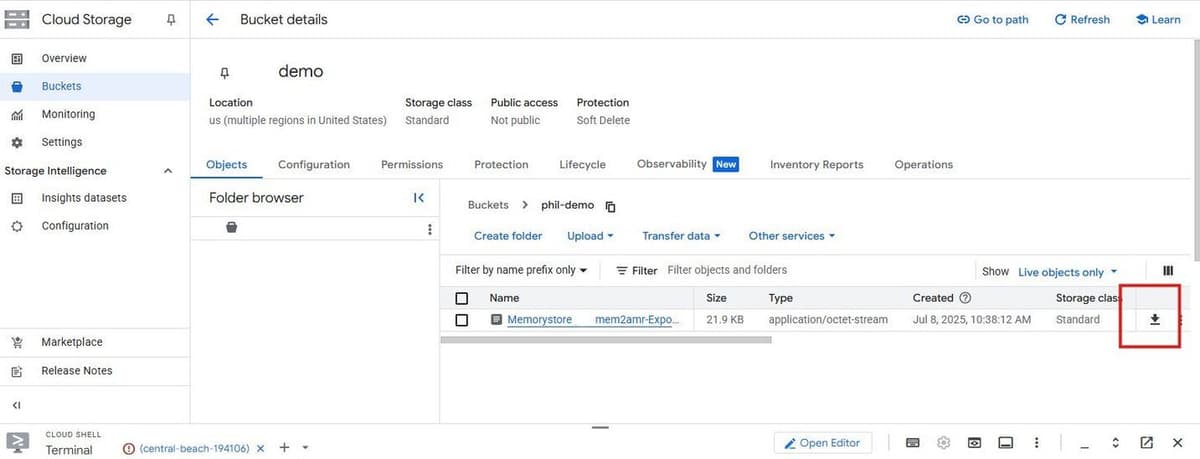
- Navigate to the Google Cloud Storage Bucket
- Select the bucket you saved the .rdb file in
- Download the .rdb to your local machine
#Import RDB file to Azure Blob
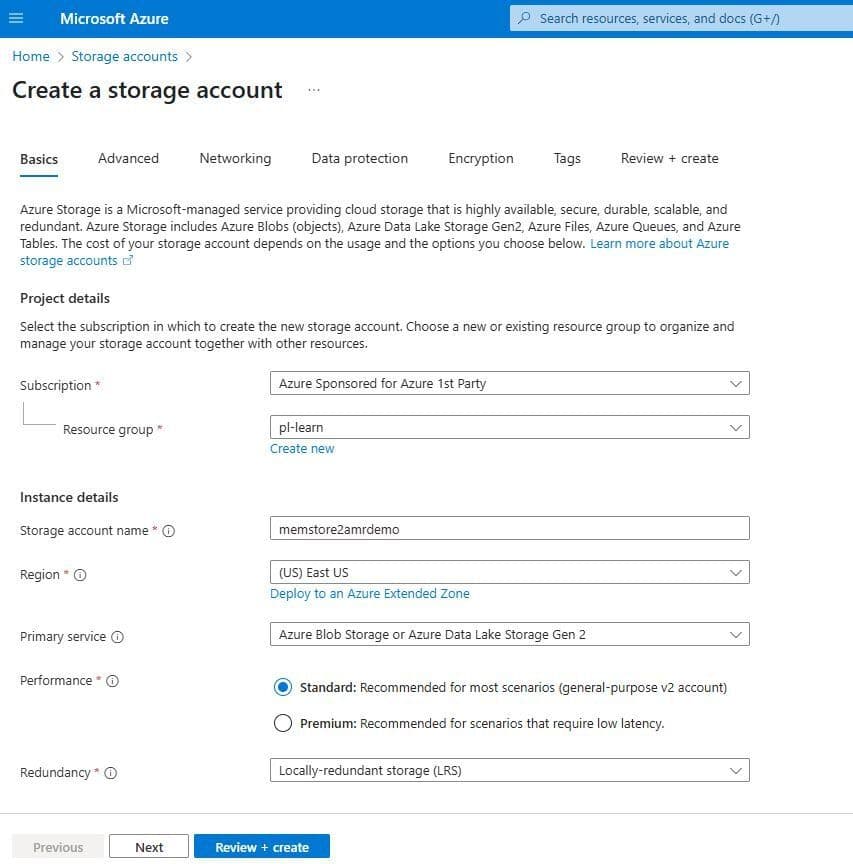
- In the Microsoft Azure console, navigate to Storage Accounts
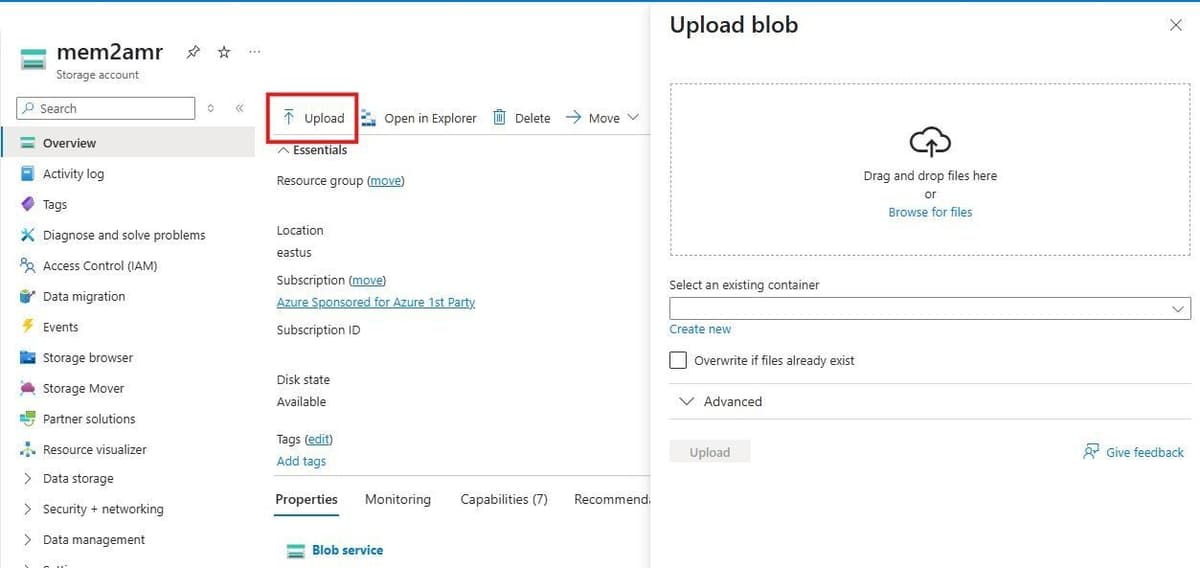
- Create an Azure Blob instance
Upload your .rdb file into the Blob container
#Create your Azure Managed Redis instance
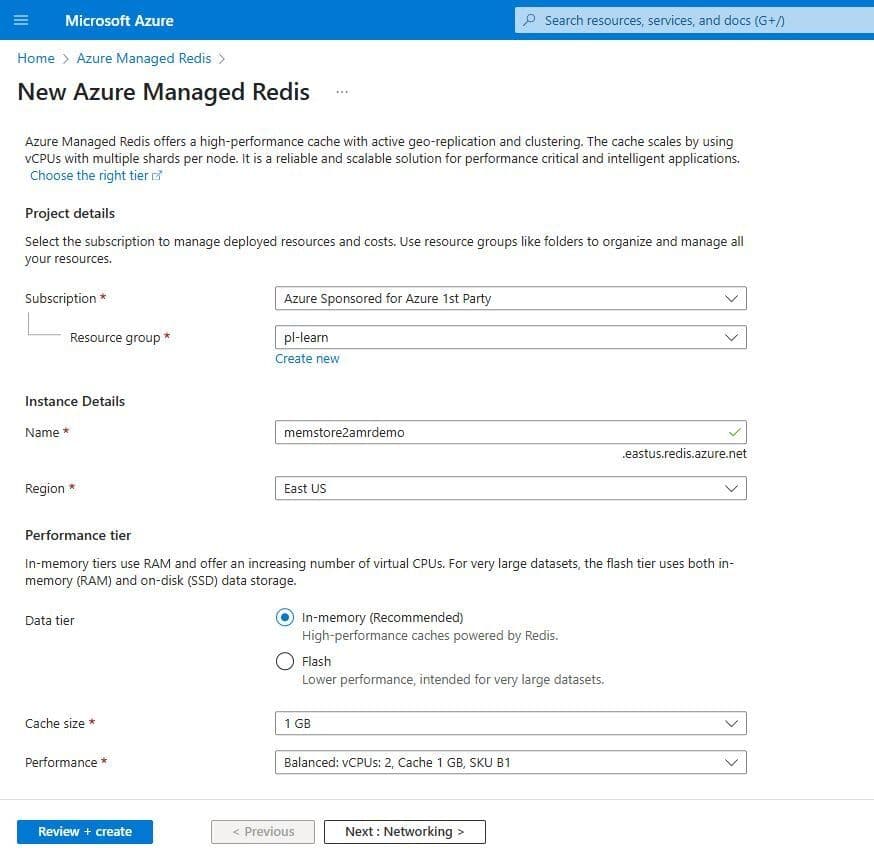
- Navigate to Azure Managed Redis
- Select a size that fits your data set size captured in the initial steps on Memorystore. The rough estimate for sizing is your [current data set size * 1.2] = AMR data size (round up to the nearest size)
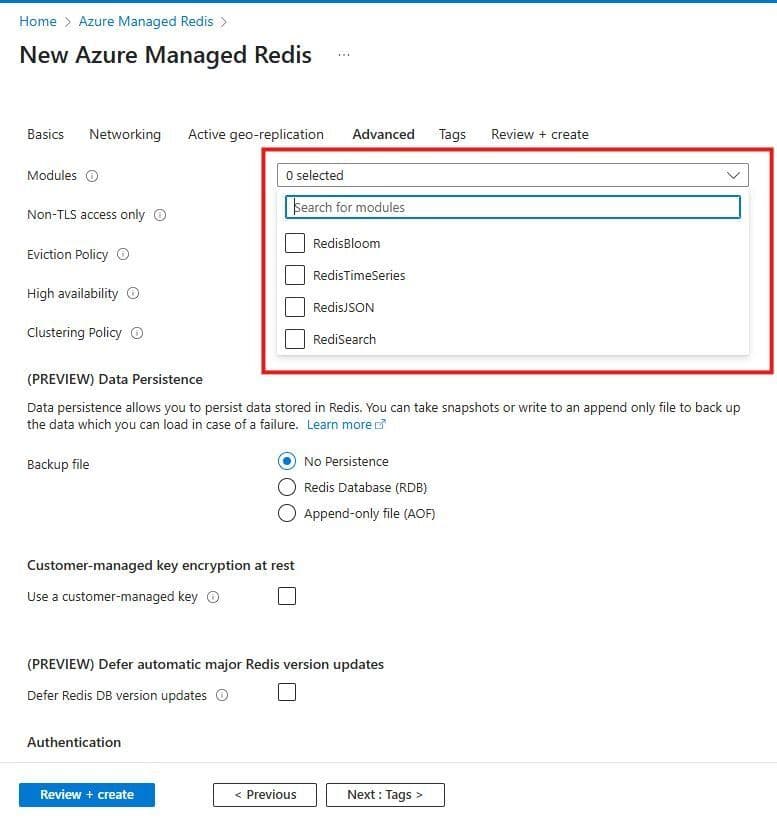
Select the data modules that you used within your Memorystore instance (RediSearch, RedisJSON, RedisTimeSeries, RedisBloom)
Create your instance
#Import RDB file into Azure Managed Redis instance
- Navigate to your instance once it’s been created
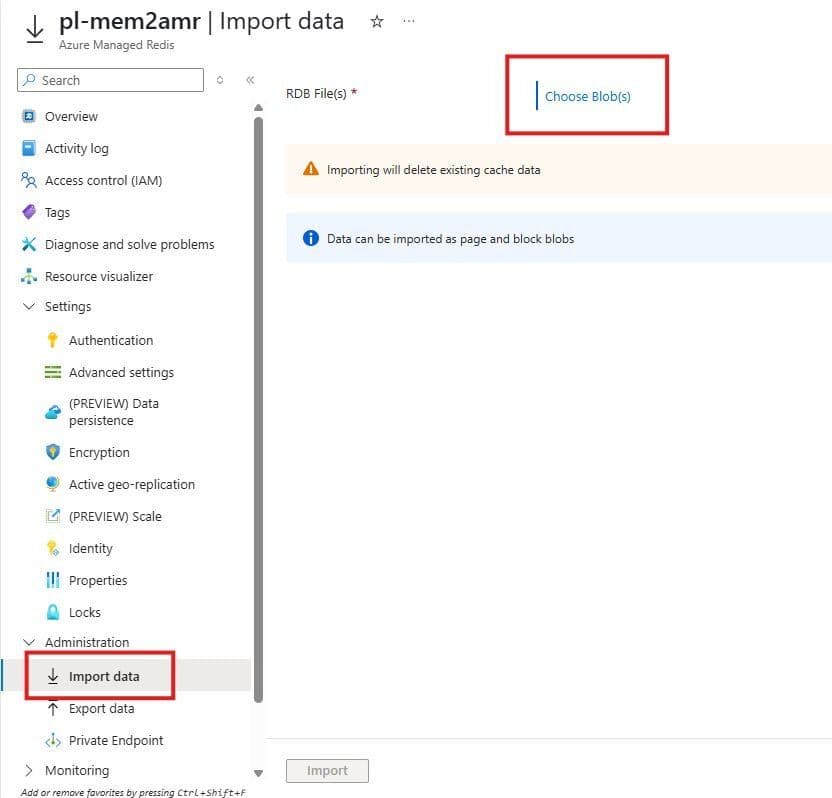
- Go to Administration > Import Data
NOTE: Importing will delete existing cache data
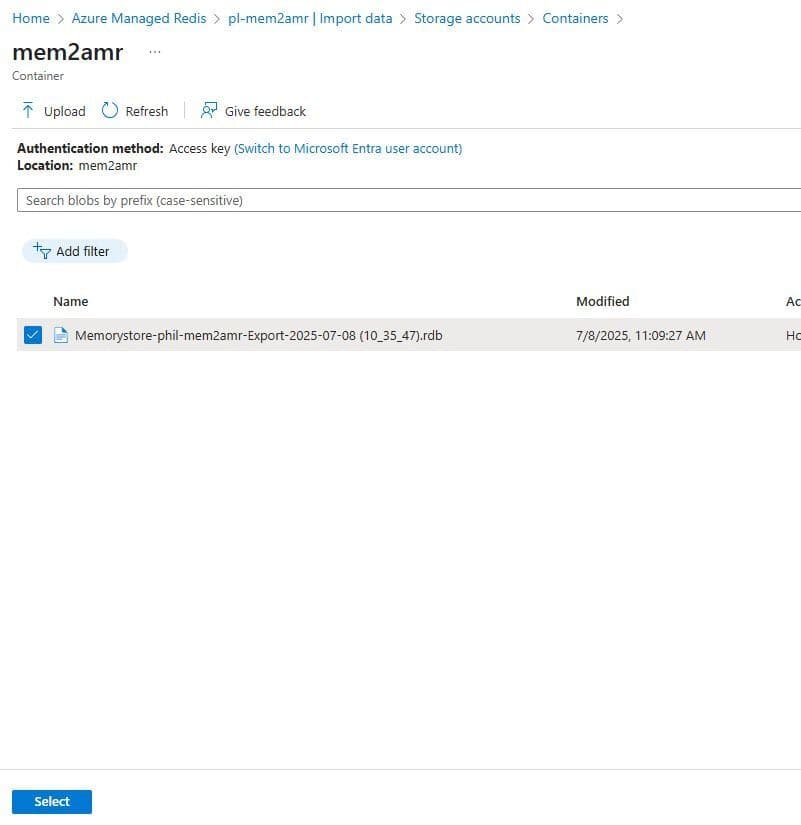
- Choose your storage account which has the .rdb blob
- Select the .rdb file you wish to import
Import your data.