For developersUse Redis with no setup required with Redis Sandbox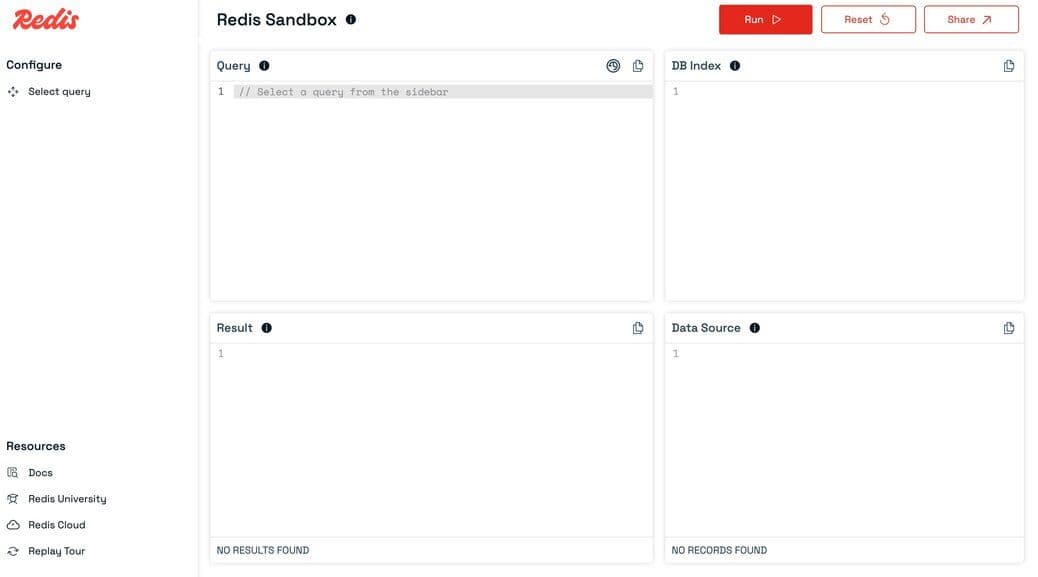
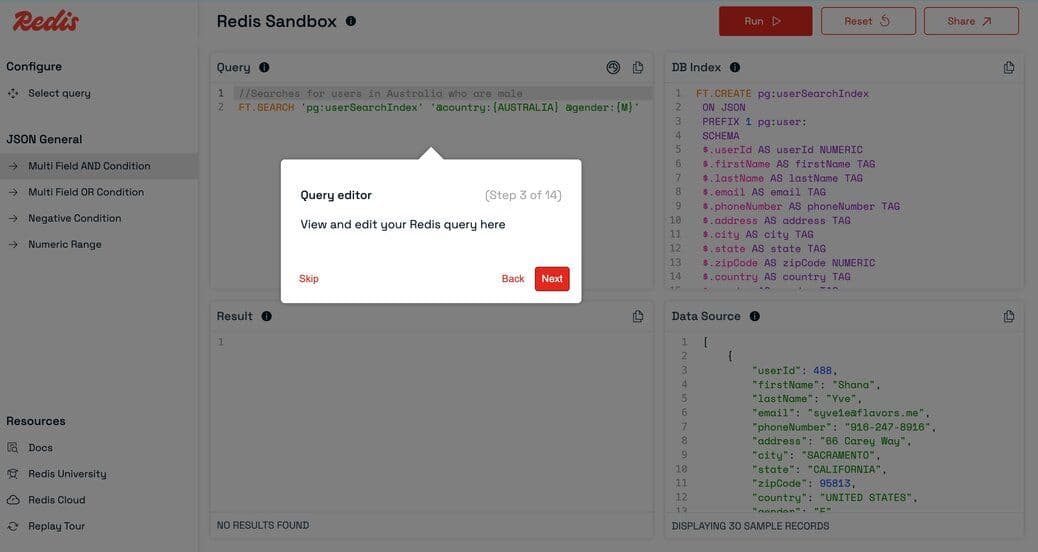
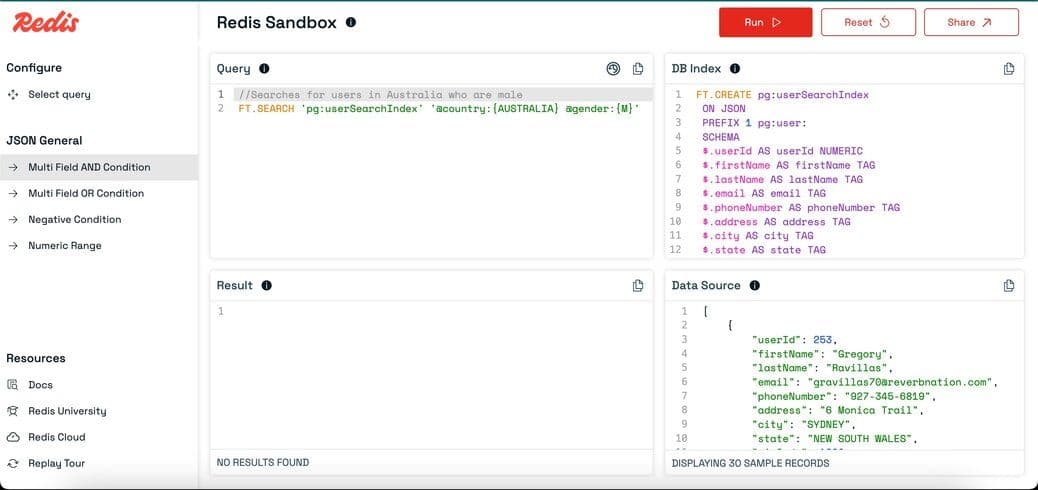
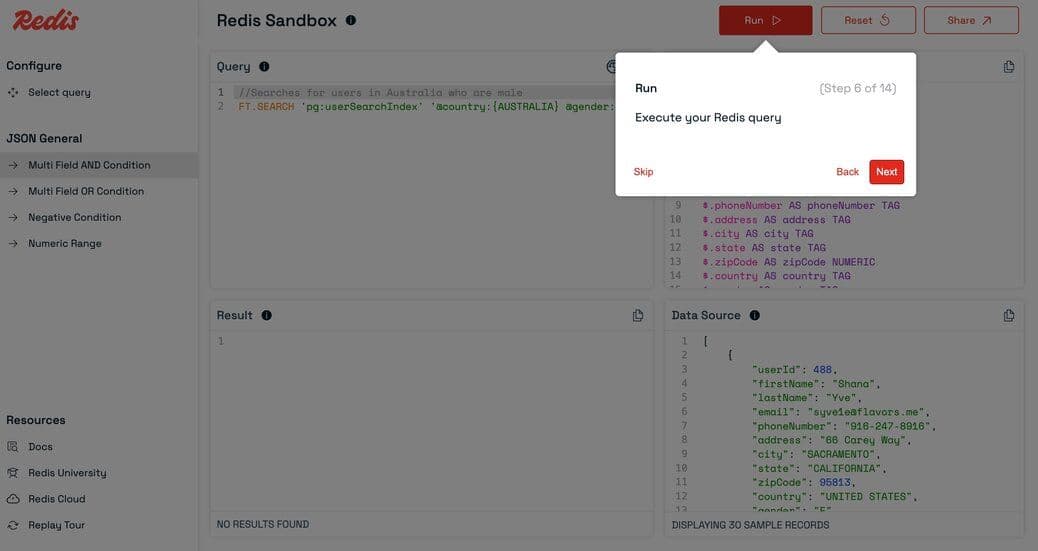
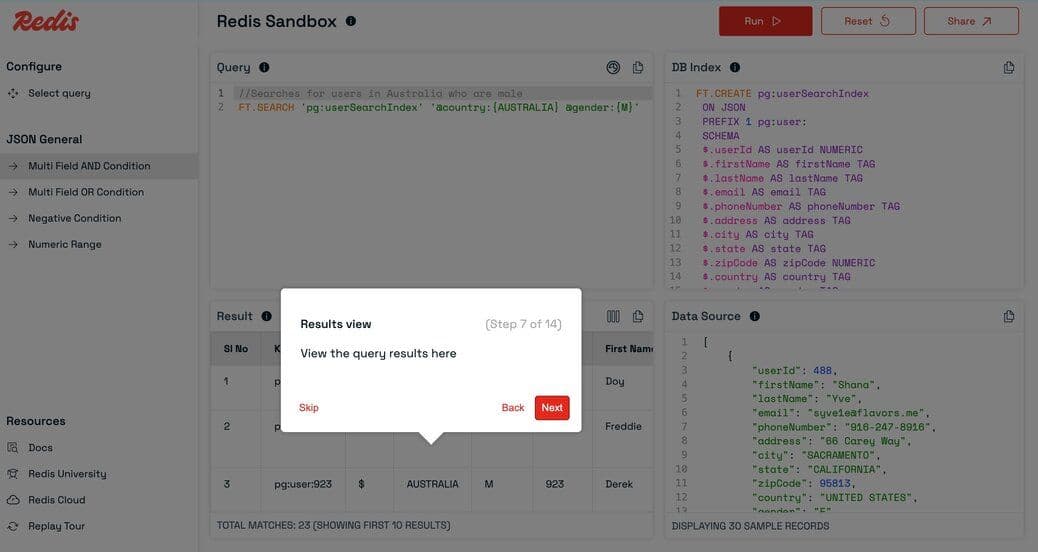
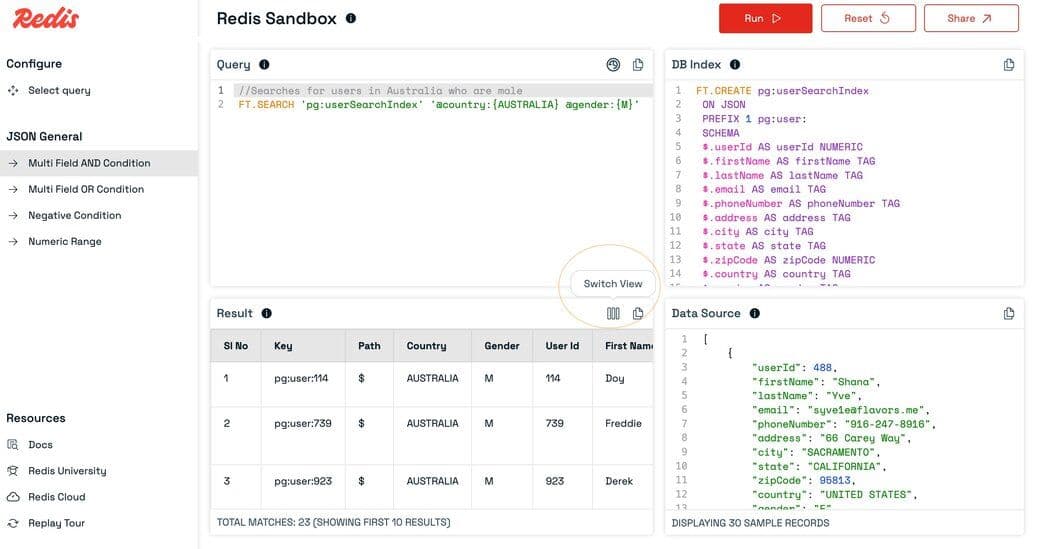
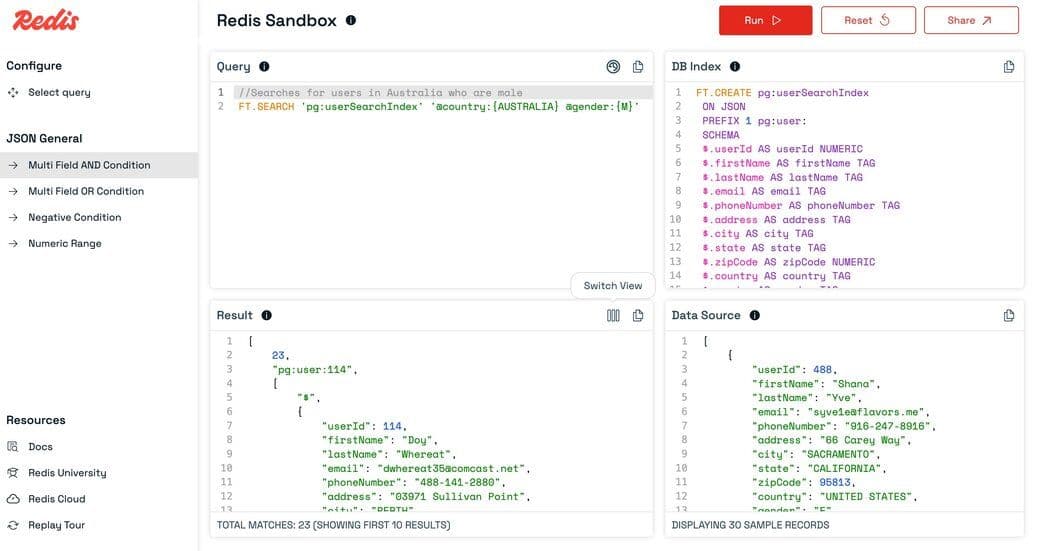
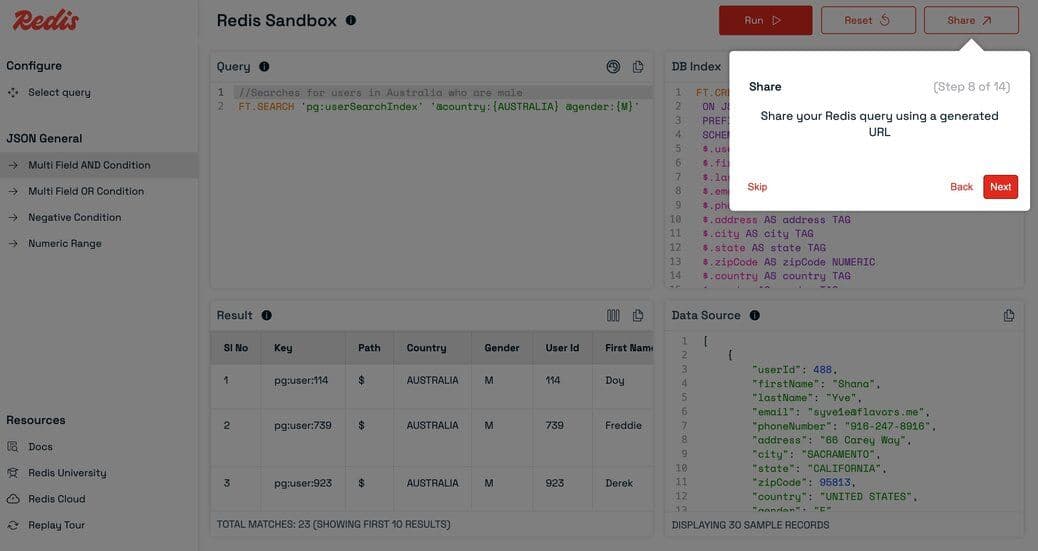
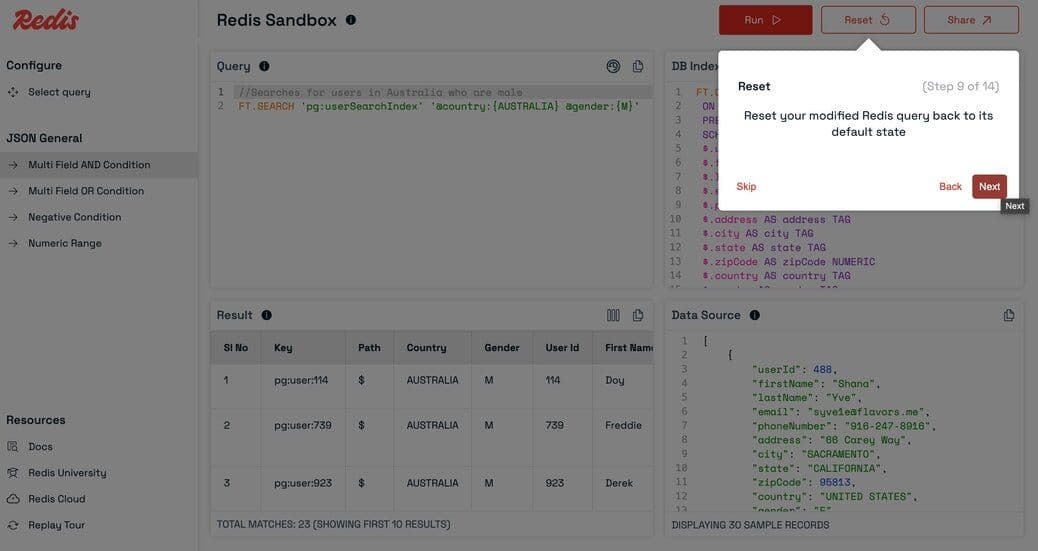
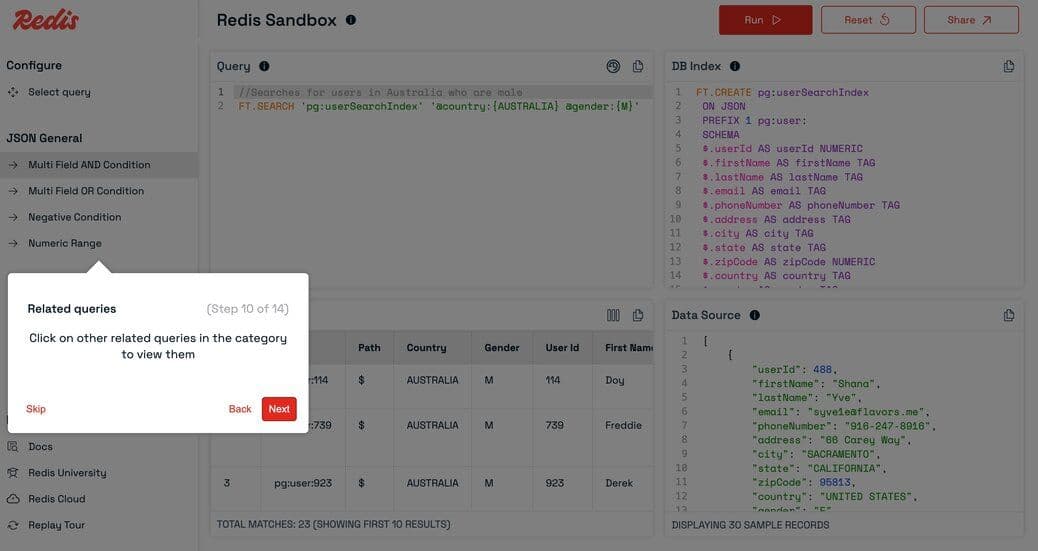
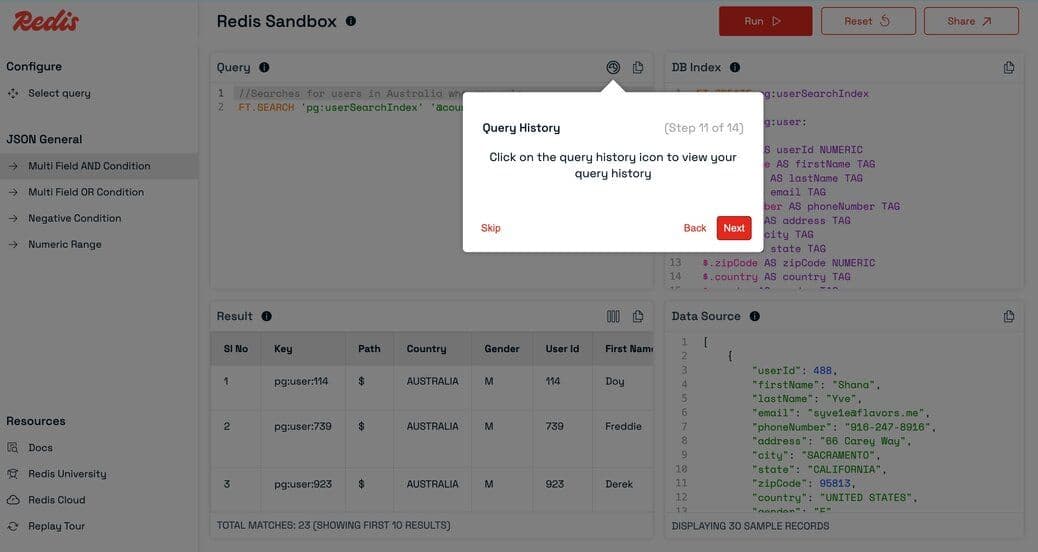




Redis Sandbox (also known as Redis Playground) is an interactive tool that lets you experiment with Redis commands in a safe, isolated environment—no setup required. Whether you're learning Redis, testing queries, or demonstrating features, Redis Sandbox is the perfect place to get hands-on experience.
Main features include:
- Run read queries
- Run write queries (session based)
- View query history
- Share queries (with or without modification)
#Accessing Redis Sandbox
Visit the Redis Sandbox at: https://redis.io/try/sandbox/
You'll be greeted with an interface designed for quick experimentation.
#Exploring the Interface
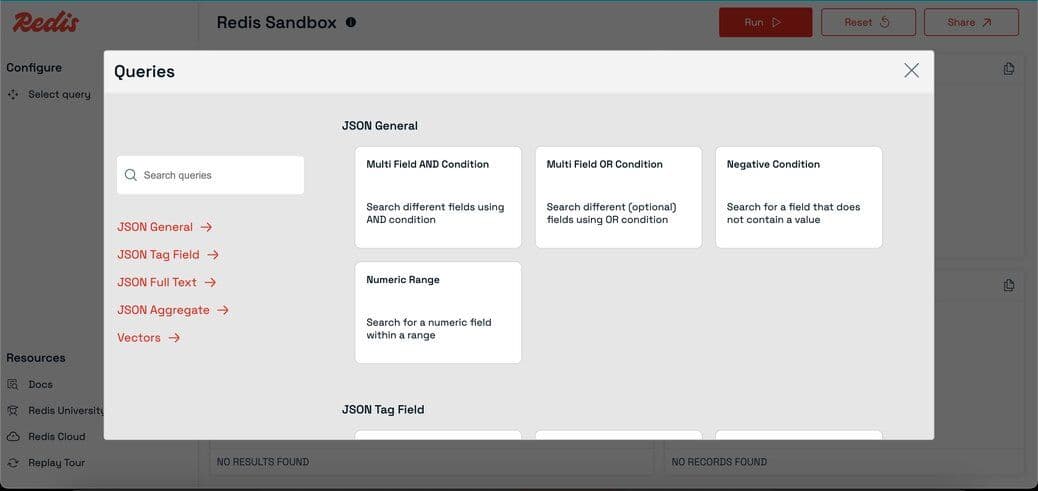
#Selecting a Predefined Query
- Click
Select queryin the left sidebar.
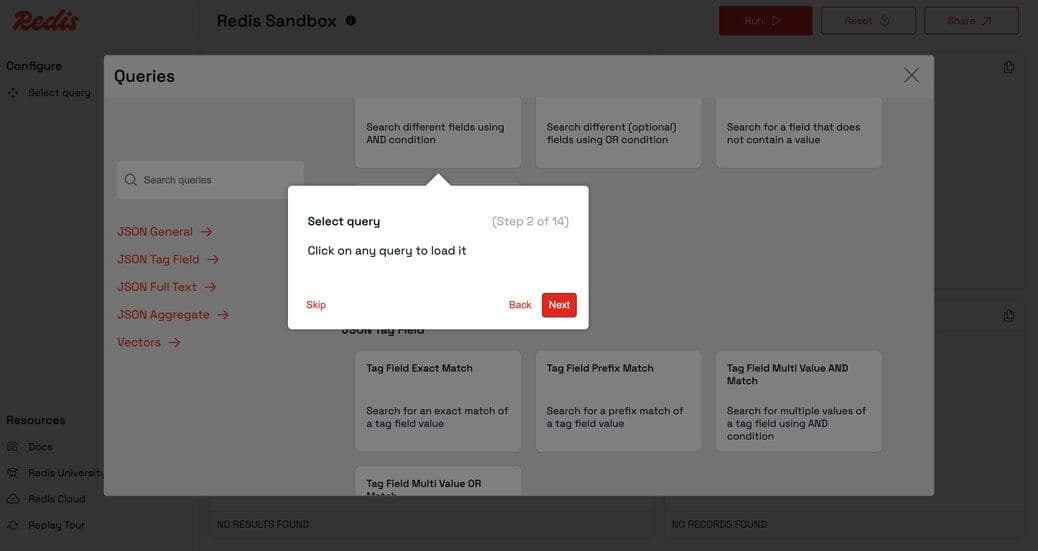
- A popup will appear with a list of predefined queries covering common Redis operations.
- Click any query to load it into the query editor.
#Writing Your Own Query
- You can also type or paste your own Redis commands directly into the query editor.
- The editor supports multi-line queries and syntax highlighting for better readability.
#Query Panel
- Displays the currently selected or written query.
- You can edit, run, or reset the query here.
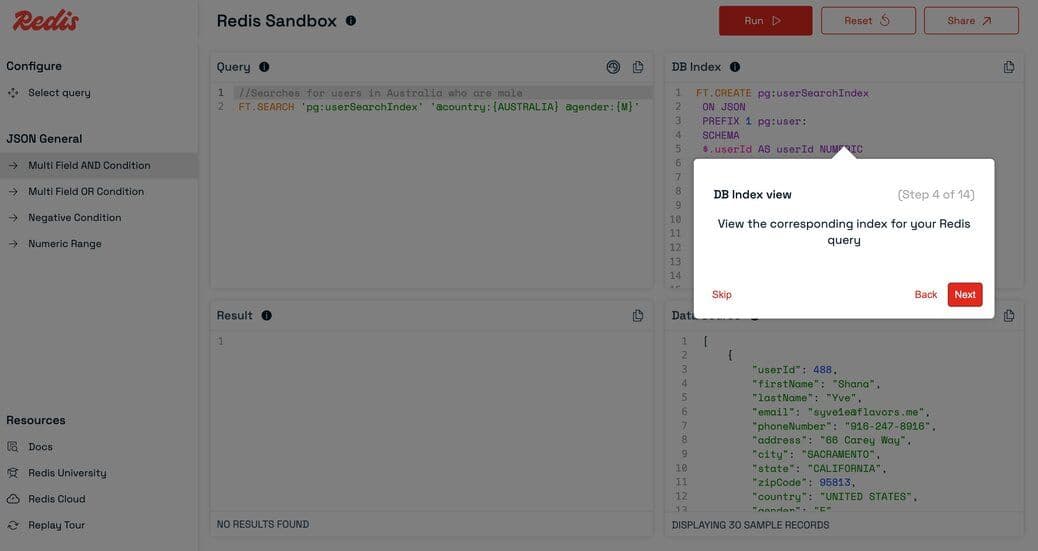
#DBIndex Panel
- Shows index details related to the selected query.
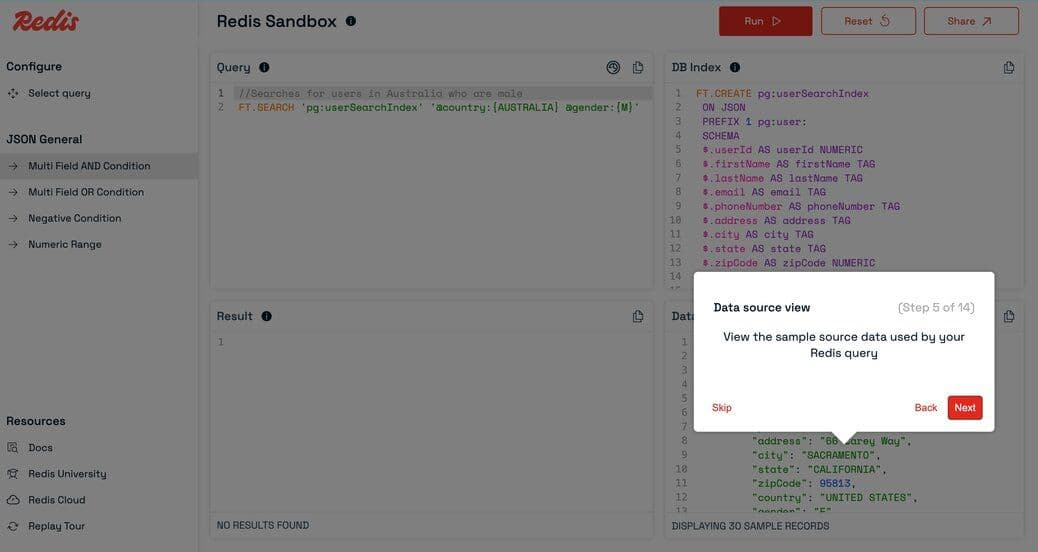
#DataSource Panel
- Displays sample data associated with the selected query and index.
- Helps you visualize the data your query will operate on.
#Run Query
- Click the
Runbutton to execute your query. - The results will appear in the Results panel.
#Results Panel
- View the output of your query in a structured table or as raw text.
- Toggle between views using the
Switch Viewicon in the Results panel header.
#Share Query
- Click the Share button to generate a shareable link for your current query.
- You can also modify the query before sharing.
#Reset Query
- Made changes you want to undo? Click
Resetto revert to the originally selected query.
#Navigating related queries
- Quickly switch between related queries by clicking their names in the left sidebar.
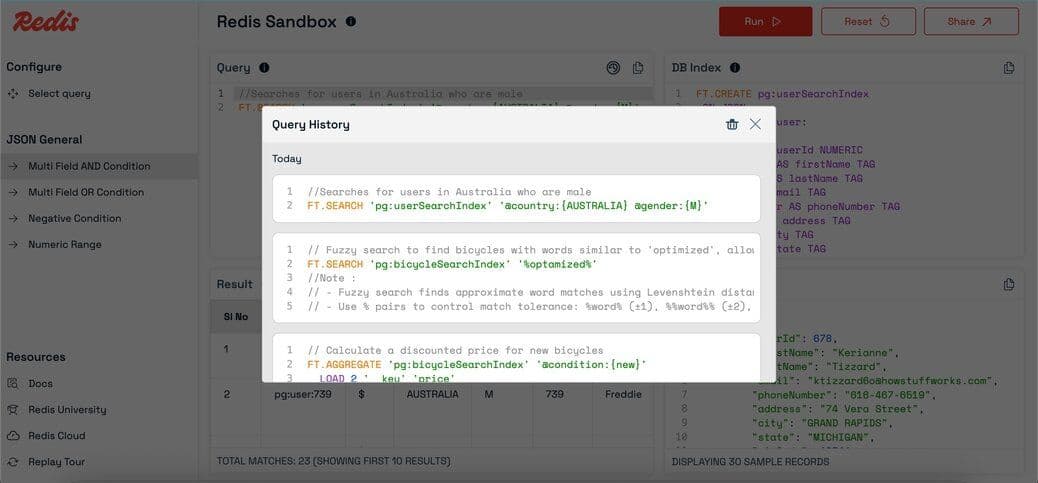
#Query History
- Click the history icon in the query panel header to view your past successful queries.
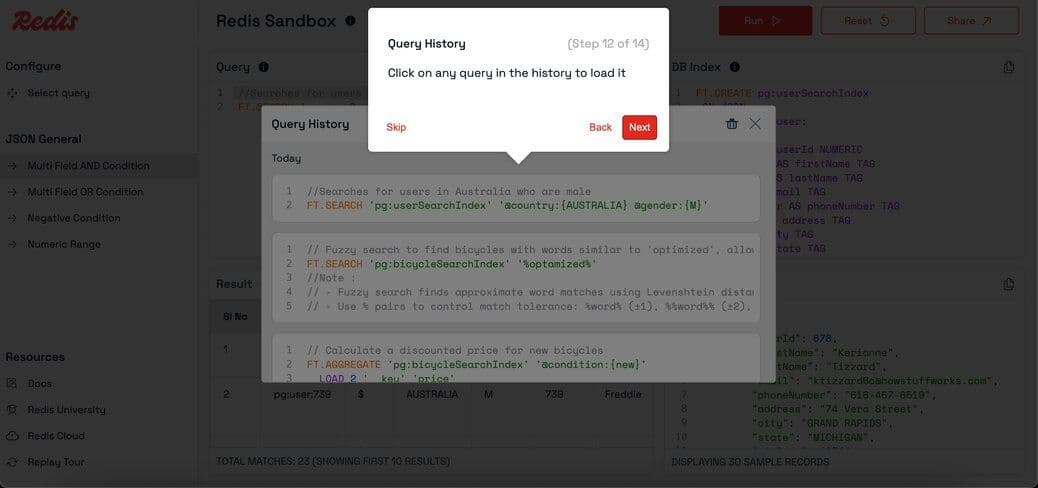
- Reload any previous query with a single click and run it again.
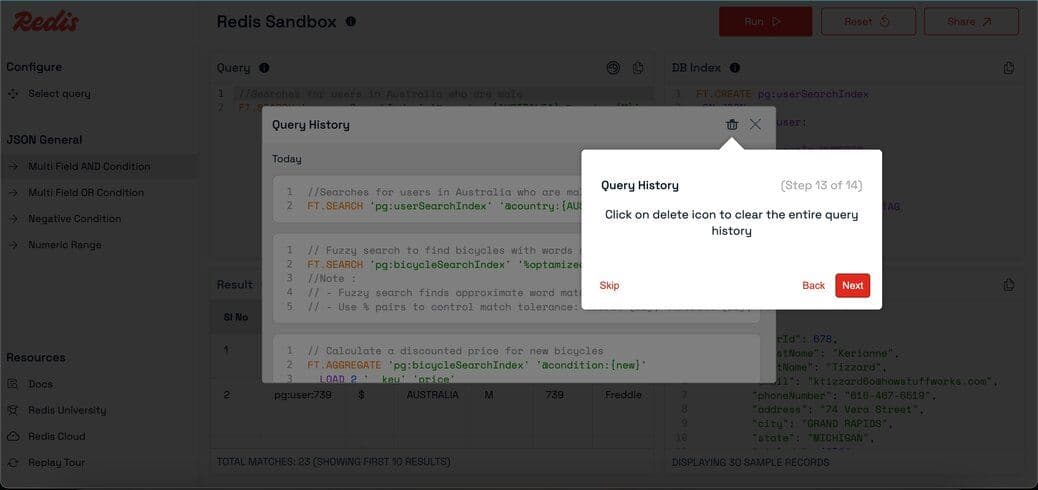
- Delete your query history if needed.
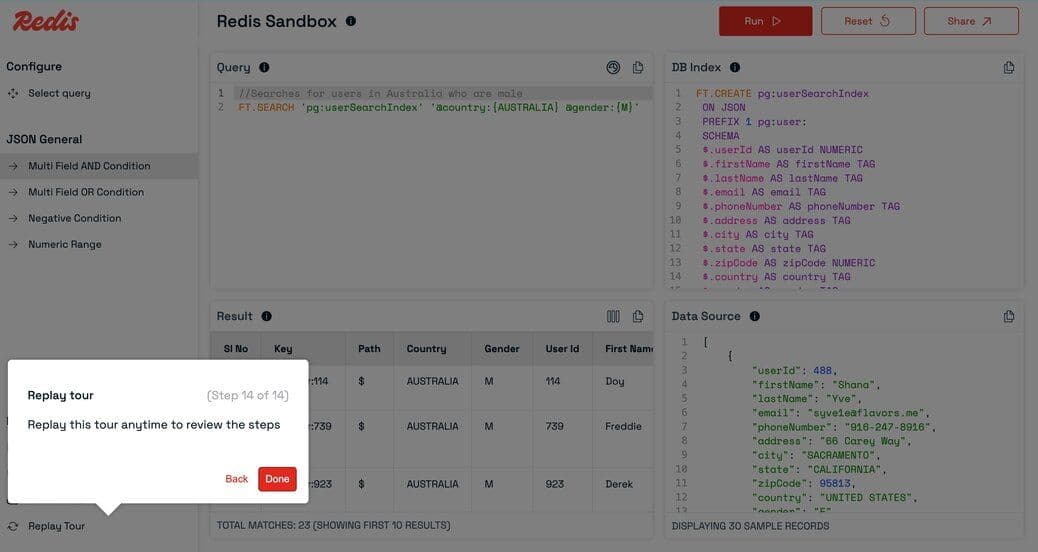
#Replay tour
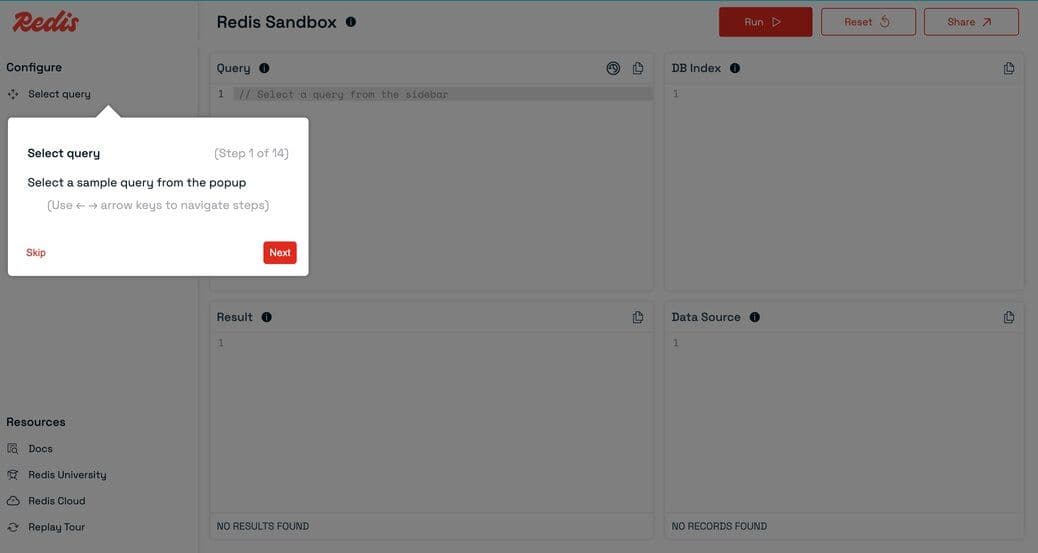
- Click
Replay tourin the sidebar to revisit the guided walkthrough.
#Session (write) Queries
- When you execute a write query, a unique session is created for you.
Sample write query:
- All subsequent queries in that session will operate on your session's data.
- Sessions have an expiry setting; data is deleted after the session expires.
- Note: Every key in your write query must use the
pg:prefix.
Note: The session status is shown in the header
- Before starting a session:
- After starting a session:
#Resources
- Redis documentation - Official Redis documentation.
- Redis University - Free online courses and tutorials.
- Redis Cloud - Managed Redis service.