For developersHow to run Redis on Windows Natively
Memurai for Redis brings the full power and performance of Redis to Windows - natively, seamlessly, and without compromise. Visit memurai.com for installation packages and more information.
This guide will walk you through installing and configuring Redis on Windows with Memurai. You'll also find key information on system requirements and supported features.
#How to install Memurai for Redis
You can install Memurai for Redis either via a graphical installer or using the command line.
#GUI installation
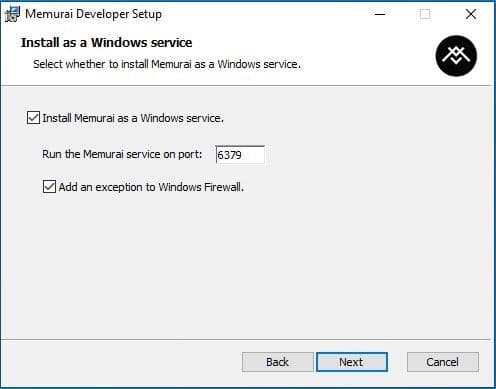
- During installation, you can choose to install Memurai as a Windows service. If skipped, you can still set it up as a service later via command line.
- You can specify the port number during service installation and opt to create a firewall rule (if Windows Firewall is active). The selected port is saved in the configuration file and can be updated later by editing the file and restarting the service.
- The Windows service runs under the
NT AUTHORITY\NetworkServiceaccount by default, but this can be changed in the Services management console. Memurai is configured to start automatically with Windows. - The Memurai installer includes the main executable
memurai.exe, the Memurai clientmemurai-cli.exe, and other tools. It also installs a default configuration file,memurai.conf, fully compatible with the Redis® 7 API.
#Command line installation
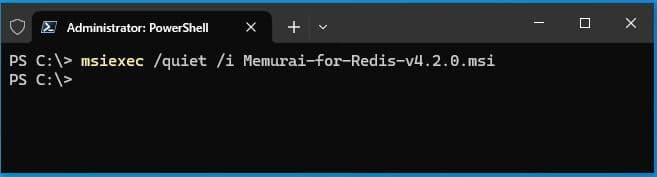
To install Memurai silently with default settings, run:
C:\>msiexec /quiet /i memurai.msiWhere
memurai.msi is the path to the installation file.You can override default settings with specific parameters:
| Option name | Default value |
|---|---|
| INSTALLFOLDER | "C:\Program Files\Memurai" |
| ADD_INSTALLFOLDER_TO_PATH | 1 |
| INSTALL_SERVICE | 1 |
| PORT | 6379 |
| ADD_FIREWALL_RULE | 1 |
Example 1: Custom install path, add to PATH, no Windows service:
C:\>msiexec /quiet /i Memurai.msi INSTALLFOLDER="C:\MyApps\Memurai" ADD_INSTALLFOLDER_TO_PATH=1 INSTALL_SERVICE=0Example 2: Install with default location, no PATH addition, service on port 8000:
C:\>msiexec /quiet /i Memurai.msi ADD_INSTALLFOLDER_TO_PATH=0 PORT=8000#How to configure Memurai?
If installed as a Windows service, Memurai can run with either default or custom configurations.
To run with the default config:
C:\Users\<username>\memurai.exeTo use a custom configuration, modify the default config file.
#What is the configuration file?
The configuration file is a plain text file where each line starts with a keyword followed by its arguments:
keyword arg1 arg2 ... argNArguments that include spaces must be enclosed in quotes:
logfile "C:\logs\memurai log.txt"You can use both \ and / as path separators:
logfile "C:/logs/memurai log.txt"#How to edit the configuration file?
Copy the default memurai.conf, modify it as needed, and run Memurai with it:
C:\Users\<username>\memurai>memurai.exe memurai.conf#What Redis configuration flags does Memurai support?
Memurai supports all standard Redis configuration flags except the following:
always-show-logoactivedefragactive-defrag-ignore-bytesactive-defrag-threshold-loweractive-defrag-threshold-upperactive-defrag-cycle-minactive-defrag-cycle-maxdaemonizesupervisedsyslog-enabledsyslog-identsyslog-facilityunixsocketunixsocketperm
If these flags are included in the config file, Memurai will ignore them.
#Are there any Memurai-specific configuration flags?
Yes, Memurai introduces a few unique flags:
instance-name: Assigns a name to the Memurai instance, shown in Windows Event Logs and the log file to help differentiate between multiple instances.winlog-level: Sets the verbosity level of logging for Windows Event Log entries.
For detailed installation and configuration options, refer to the official Memurai docs.
#System requirements, compatibility, and limitations
#What are Memurai minimum requirements?
Memurai is compatible with:
- Windows 10 and Windows Server 2012 or newer
- For best results, use Windows 10 or Windows Server 2016+
- Only 64-bit Windows versions are supported
#Which Redis version is Memurai compatible with?
Memurai fully supports Redis version 7.2.6.
#What are the known limitations?
- Unix domain sockets are not supported
- As listed above, a few config flags are excluded because they are irrelevant for Windows
For a full list of FAQs, check out the Memurai FAQ.
#Get started with Memurai today
Gone are the days of frustrating workarounds and unsupported builds just to get Redis running on Windows. Memurai gives you the speed, simplicity, and reliability of Redis, fully optimized for your Windows environment.
Interested? Try Memurai Enterprise Edition free for 90 days - ideal for production use, with unlimited uptime, host connections, and RAM utilization. Register through the new Memurai Portal to experience the production-ready Enterprise Edition.
Plus, Memurai engineers are already working on full compatibility with Redis 8. Visit memurai.com for updates.
If you have any questions about Memurai—including pricing or technical details—feel free to reach out to us through the chatbot on our website.